
DeployR is built to be secure
When development on DeployR started, we knew that we needed to build a solution that would be secure regardless of how it was used: in a dedicated lab, on a corporate network, or even connected directly to the internet.
DeployR uses secure communication
That starts with the communication protocols being used. All traffic to and from the DeployR server is encrypted using TLS (HTTPS). You can use a certificate from an internal PKI, a publicly-issued certificate from LetsEncrypt or any other certificate authority, or even a self-signed certificate.
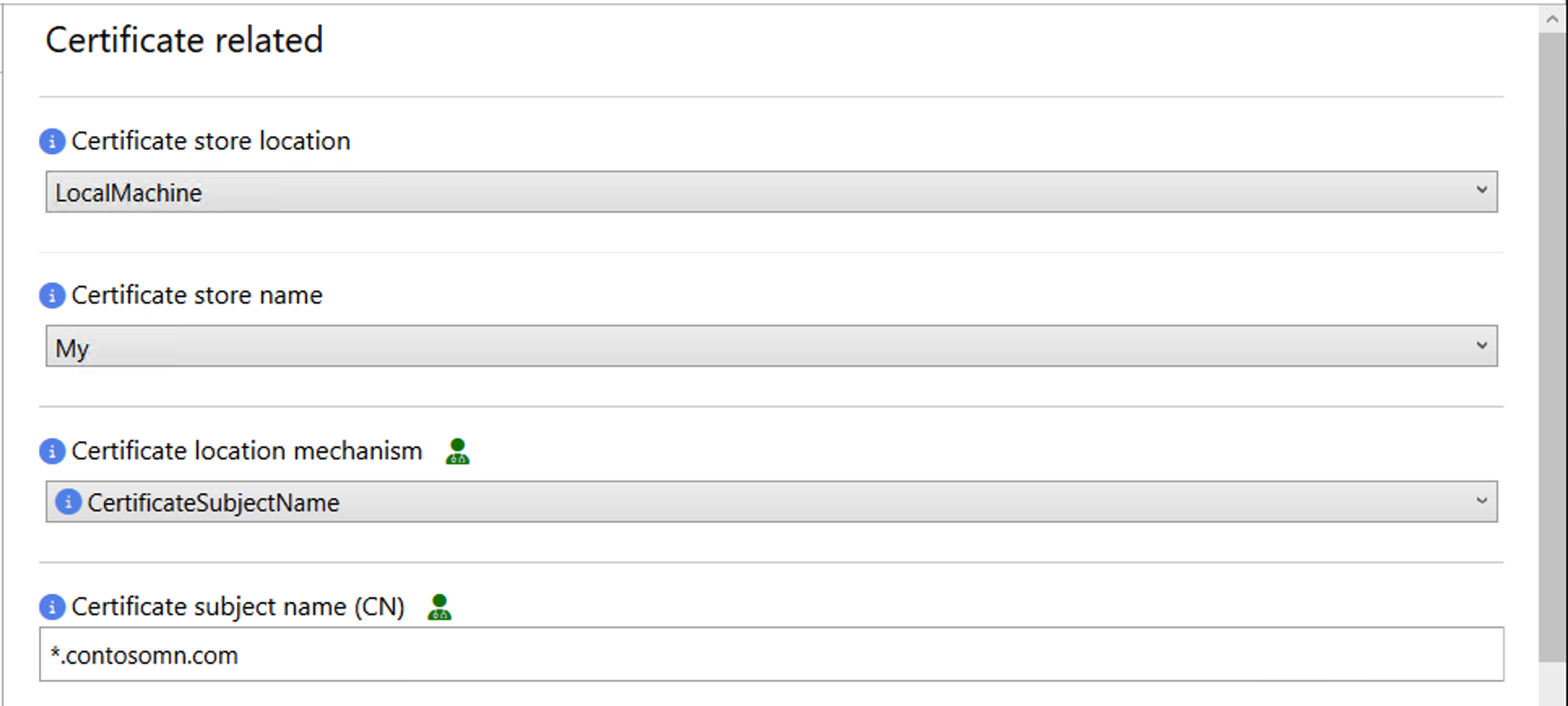
Just tell us which certificate to use and we’re set. (I prefer a public wildcard cert as it’s convenient in a lab environment, but you can make your own choice.)
DeployR implements authentication
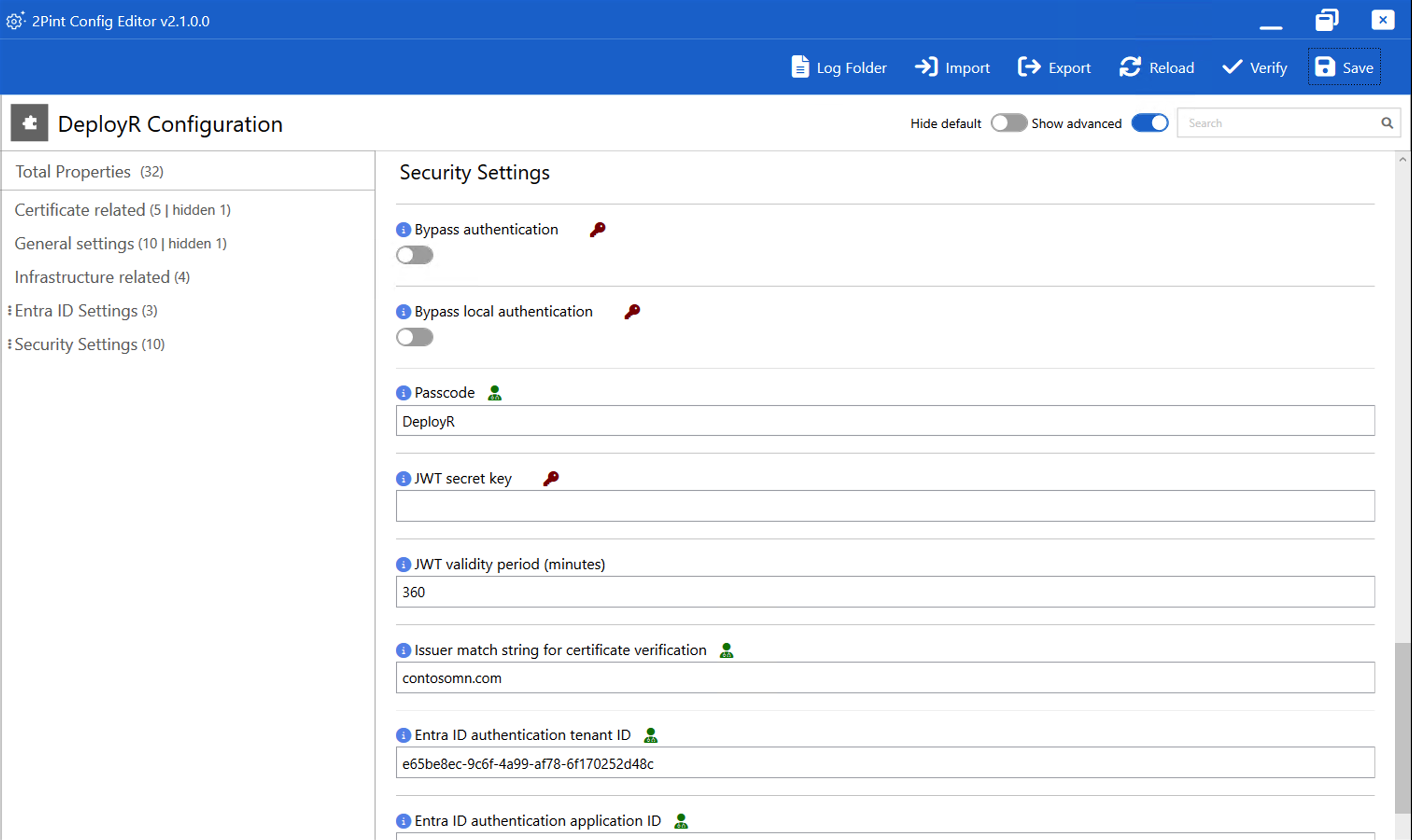
On top of that, we then need to provide authentication mechanisms to ensure that the DeployR service itself can only be accessed by the right people. As described in the DeployR documentation, we have three available mechanisms (well, four, but we’ll skip over certificates for now):
- Entra ID. This is ideal for when you want to restrict access to specific individuals, and you want an audit log of who accessed the server from where and when. I would consider this essential for any DeployR server attached to the internet.
- Passcode. If you are using DeployR inside your corporate network only and you just want to keep the riffraff away (so you don’t care who reimages a machine, as long as they know the “code word” to get in), having a single configured passcode (e.g. “DeployR”) is an OK but obviously less secure fallback.
- Anonymous authentication. I would only suggest this in an isolated lab environment. Basically, you are still authenticating to the DeployR server to get an authentication token, but no actual authentication is performed – anyone who asks will get a token.
These are fairly easy to configure:
And easy to use:
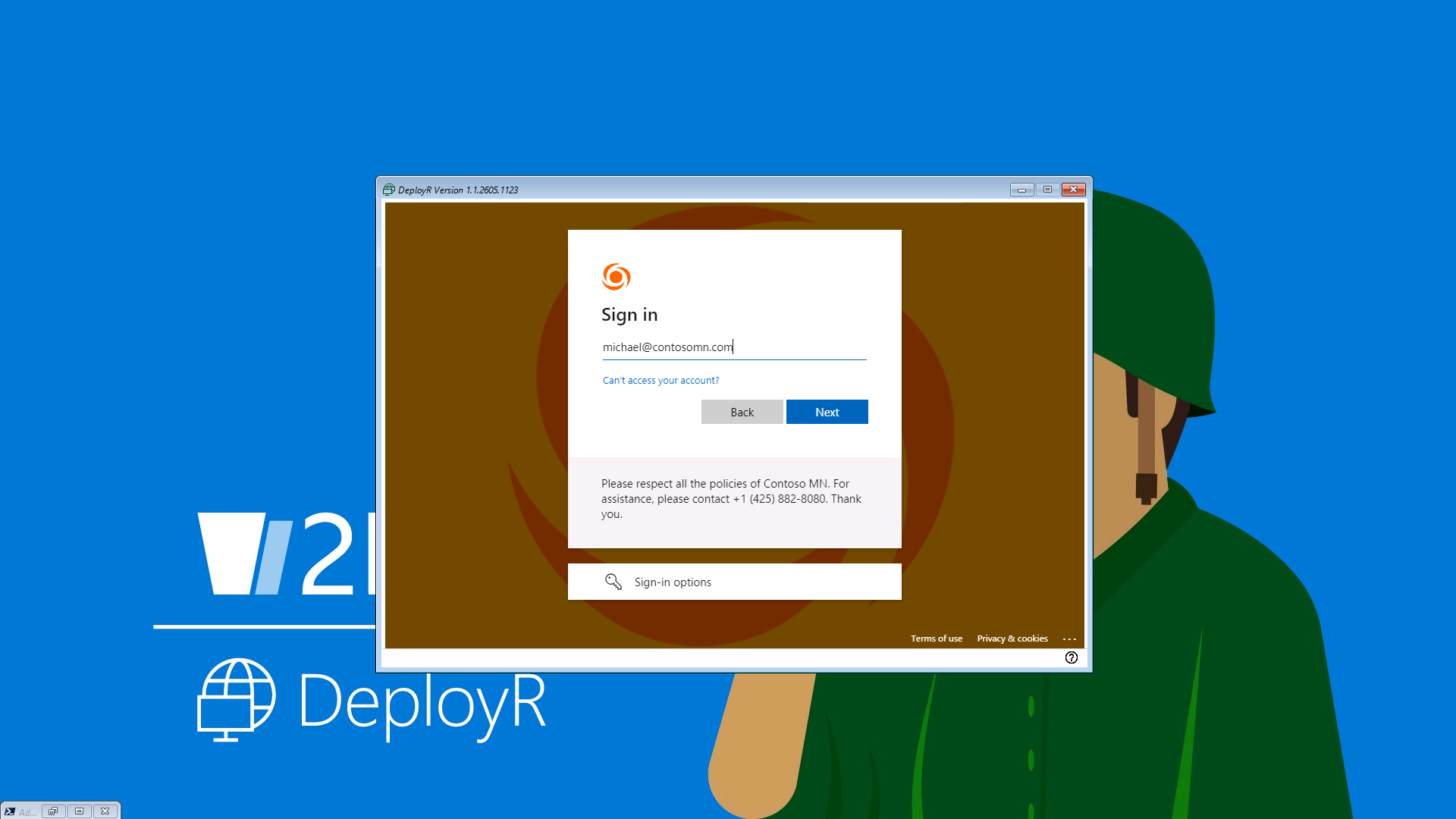
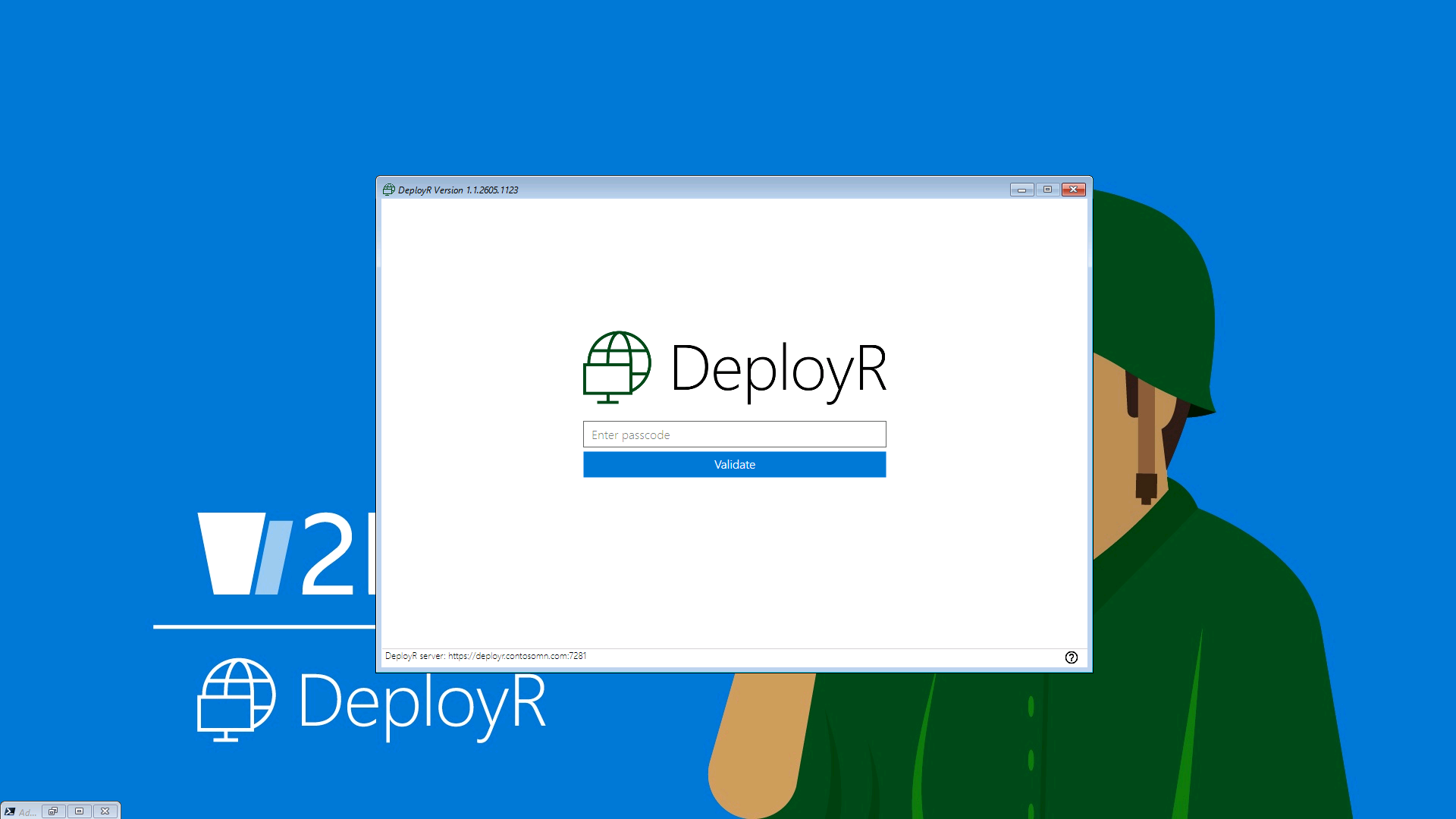
(All of these use JWT tokens behind the scenes – no JTW token, no access. And the issued tokens are only good for six hours by default.)
There are some items that are purposely not secured because they are needed for the initial bootstrapping process: Windows PE boot images (needed to prompt for authentication), PowerShell and .NET runtime files (DeployR dependencies), etc. are downloadable. These don’t contain any secrets though (and please don’t add any, e.g. 802.1x or any other type of certificate with a private key).
DeployR uses role-based access controls for administration
For administrative access (e.g. creating or modifying task sequences, content items, boot images, step definitions, etc.), that is managed by the 2Pint platform, StifleR (which will become PlatformR at some point in the future). It implements role-based access controls so that you can properly limit who can do what.
The DeployR server “holds onto the keys”
So far, we’ve only talked about “who can access what.” It really goes deeper than that. For example, let’s assume you want to join a device to Active Directory. In MDT or ConfigMgr, to do that you would need to specify a domain join account and password, which gets passed to the client device and injected into the unattend.xml file. (Hopefully you’ve followed the recommended guidance and given that account minimal rights, e.g. all it can do is join a device to a specific OU, not log in interactively, etc.) For DeployR, we use an offline domain join process (just like Windows Autopilot, although faster and more reliable):
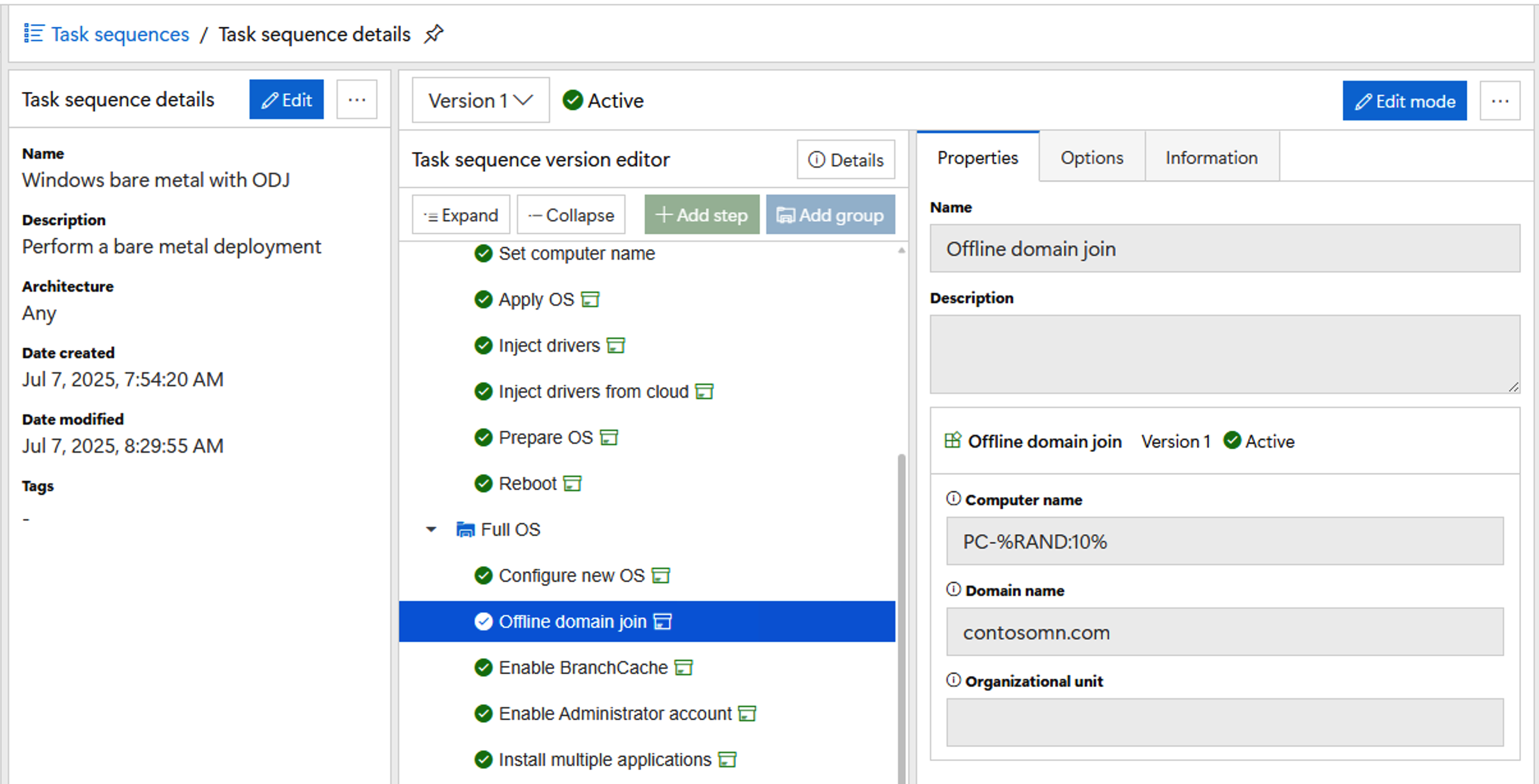
When a task sequence with an offline domain join step runs, it will ask the DeployR server to perform the join on behalf of the client device. That generates an ODJ blob that gets passed back to the device and injected into the OS, completing the join process. With this setup, you just need to delegate AD access to the DeployR service account (typically the computer account) and no credentials are ever sent to the device.
The same basic mechanism applies for other activities that are supported in the DeployR task sequence like registering a device with Windows Autopilot, assigning a primary user in Intune, or adding a device to an Entra ID group. We never want to do these operations on a client because passing app secrets or app certificates to the client is too risky given the level of rights the app has to your Entra ID tenant. So as with ODJ, a request is made to the DeployR server to perform the activity on behalf of the client; only the DeployR server has the secrets needed to perform the tasks.
We have implemented some additional restrictions in cases where we believe there is too much risk involved. For example, if you do an offline domain join and the computer account with the specified name already exists, what should we do? For these higher-risk activities, we require Entra ID or passcode authentication; they will be rejected if you only configured anonymous authentication. (We still recommend delegating the minimum level of rights to the DeployR server, e.g. only allow it access to the expected OUs.)
What about AutoLogon?
In a previous blog post, I talked about how DeployR implements a variety of continuation methods for resuming a task sequence once in the new OS. One of those mechanisms was AutoLogon. If you are familiar with AutoLogon, you know that it requires enabling the local Administrator account and configuring it with a password. While we would prefer you never do this, it is necessary in some image-creation scenarios to handle misbehaving app installs. By default, we will use a randomly generated local Administrator password that won’t be retained after the process. That can be a little challenging if the device has password complexity rules assigned via policy – we’ll do our best to generate a ridiculously-complex password, but as it is random we can’t 100% guarantee that it would meet your rules (e.g. it could accidentally have repeating characters that aren’t allowed). In that case, you might need to manually configure a password yourself, but don’t leave it set that way – set up Windows LAPS or some other mechanism to rotate the password when you are done.
In other methods (SetupComplete, Audit mode, Specialize, etc.) we don’t need the local Administrator account, so those will always be more secure.
You still need to do your part
Over the years, I’ve seen all sorts of questionable things hooked into task sequences, with user IDs and passwords to connect to network shares, account details to move accounts to other OUs (with domain admin rights no less, yikes), hard-coded network authentication credentials, “encrypted” secrets with the encryption key easily accessible (what I would call “speed bump” security), and more. So, the solution ends up being only as secure as you make it.
More DeployR security-enabling features yet to come
We are looking at adding additional ways that you can leverage the DeployR server to do things on your behalf, e.g. run a PowerShell script on the server where it is safer to perform tasks that require more rights. We also want to enable integration with external workflows or web services hosted in Azure that you could create. Those are still works in progress, so stay tuned.
Top Posts
2Pint Software and Omnissa partnership: Closing the gaps in OS deployment, bare-metal imaging, bandwidth optimization, and endpoint recovery
2Pint Software blog roundup - early summer 2026 edition
2Pint Software blog roundup - spring 2026 edition

By Ranjith Lewis

By David Meurer
By David Meurer

By Andreas Hammarskjöld