
Not so long ago, one of our Pints (Andreas) presented at Techdays and covered P2P tech in a scintillating session which you can find on Youtube. This post will summarize what was discussed about Delivery Optimization, hereby referred to as DO. Who doesn’t love some DO on a Friday in February?
What is DO, and how does it work?
It’s a friendly cloud service that works a little bit like this:
- A client connects to the cloud service wanting some content
- The cloud service has a list based on geolocation of the best and closest peers
- Client says thank you so much cloud service, you were so helpful
- Client connects to a peer to get the content
- Client liked the experience so much that he/she decides to cache the content
Basically, it’s great because if you’re using the following, you can use DO
- Windows 10
- Server 2019
- Office 2019
- WU
- Microsoft Store (including Business)
- Intune
How does content get published?
The content is chunked and hashed (BranchCache anyone?). How it’s hashed is a secret, and legally so because it’s client – client. If it were server – client, you bet your eyelids there would be some public info. Don’t yell at me, I’m just the messenger. The clients will check-in until the content expires.
How is the content encrypted?
That’s a really good question, thanks for asking.
Any cool facts about downloads?
Yep, DO can download from multiple sources which makes it a great multitasker. It can do hybrid downloads too meaning it can get content via HTTP as well as peers.
How can I manage DO?
Narkis Engler presented a fantastic session at Microsoft Ignite 2018 about DO. She was also joined by Kerim Hanif from the ConfigMgr product team. Narkis goes over DO management and tuning, so it’s worth a watch.
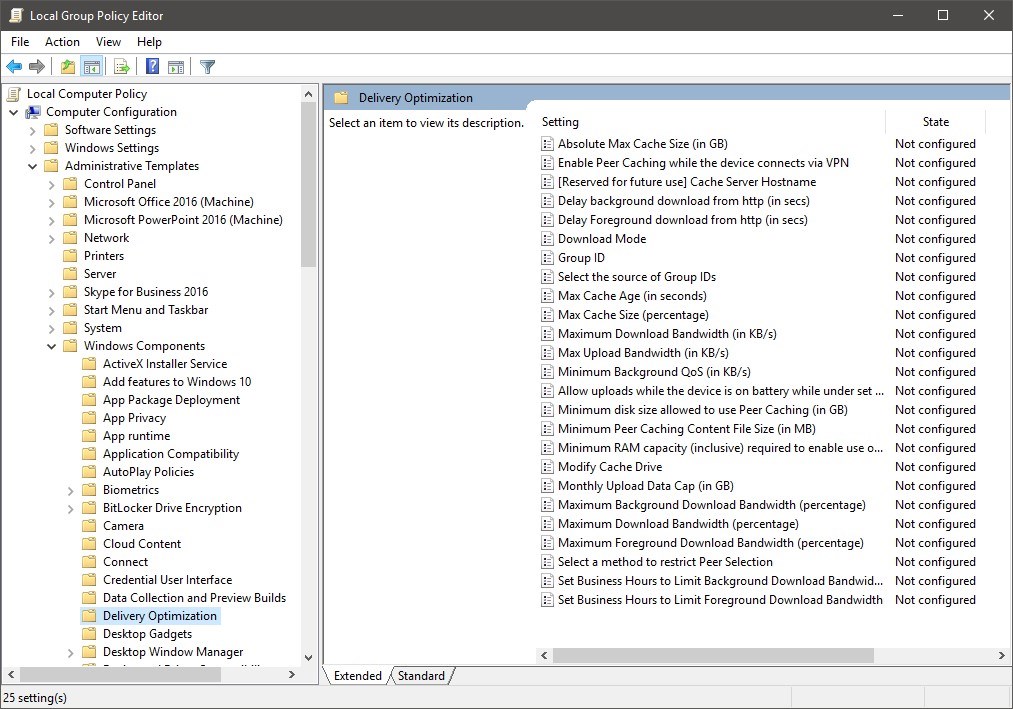
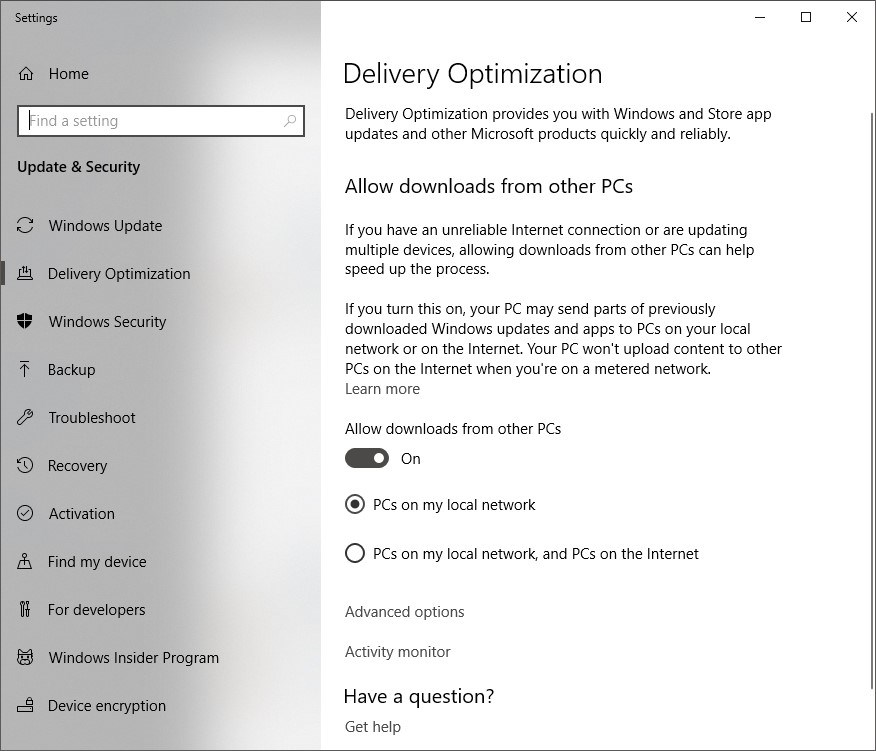
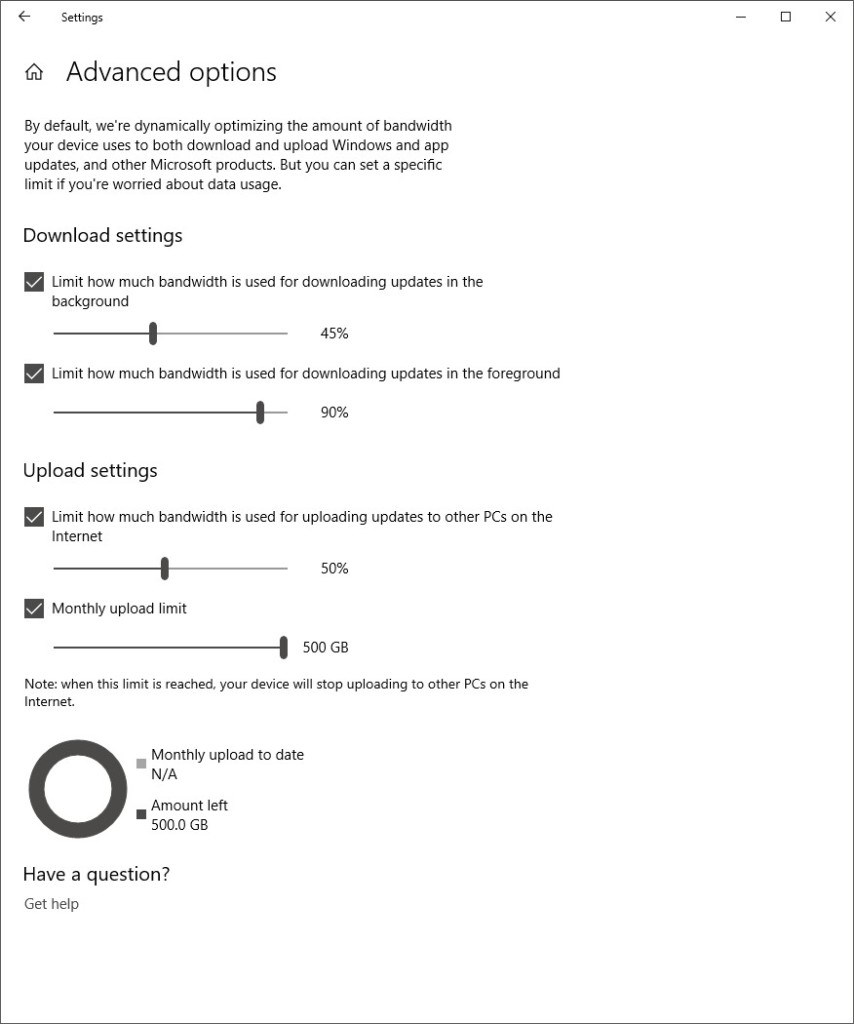
On a Windows 10 device, you can manage DO by local policy as well as via the settings app:
You can manage DO settings via ConfigMgr client. Some weird guy wrote a post about it.
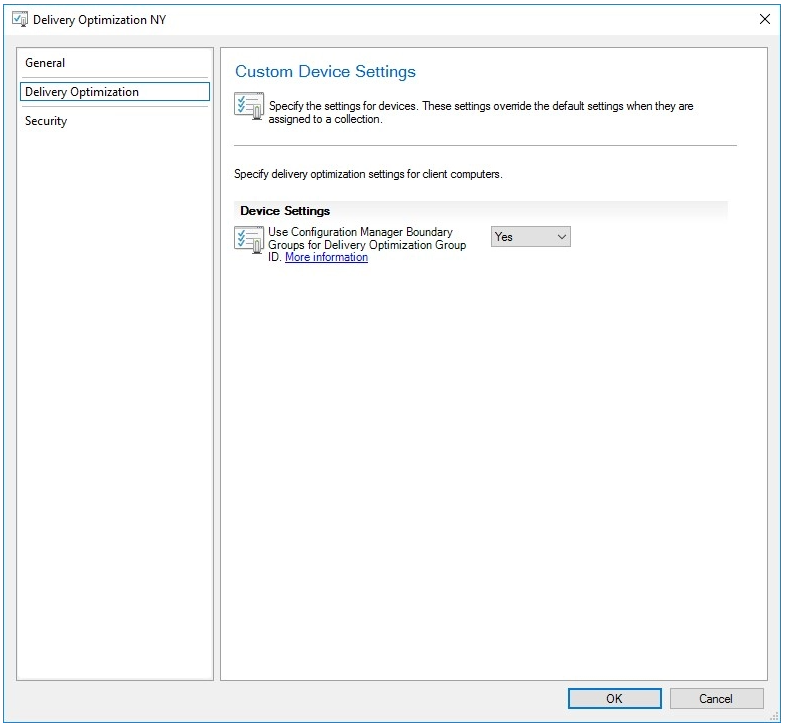
You can manage DO settings in Intune. I’ve written a shiny blog post about it.
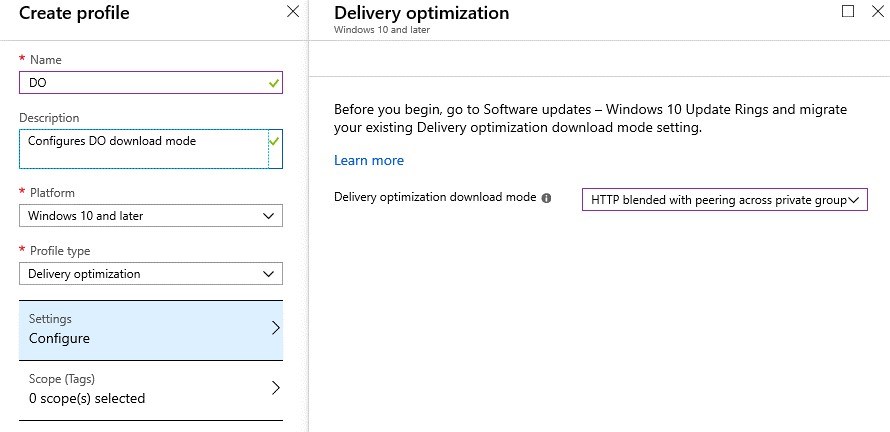
If you’re curious about how your own device is using the DO service, and want to wow your co-workers with a cool screen saver, you can use PowerShell to get info from your own device (and then save it as a photo).
Get-Command *delivery* will spit out all the cmdlets for DO
- Get-DeliveryOptimizationLog
- Get-DeliveryOptimizationPerfSnap
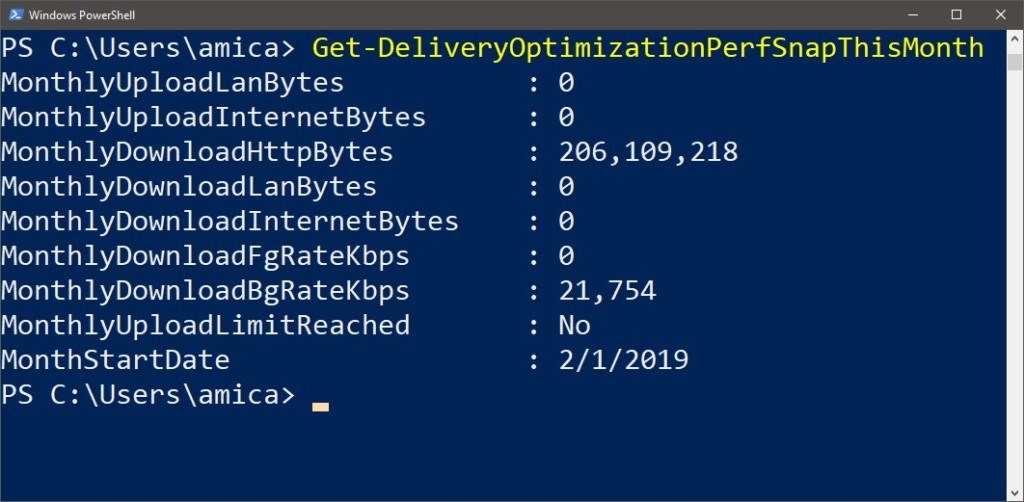
- Get-DeliveryOptimizationPerfSnapThisMonth
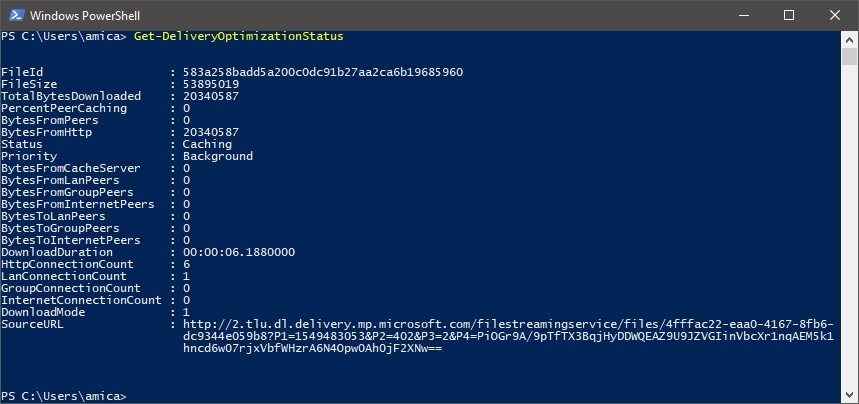
- Get-DeliveryOptimizationStatus
If you wanted to see what your device was downloading this month, checkout Get-DeliveryOptimizationPerfSnapThisMonth. If nothing shows up, go to the Microsoft Store and start downloading games business productivity apps then go check again.
Get-DeliveryOptimizationStatus will give you shiny info too. Of interest is the FileID, Priority, and Status. Remember I said earlier that the client will cache content? Check here, it’s happening on my unmanaged home PC.
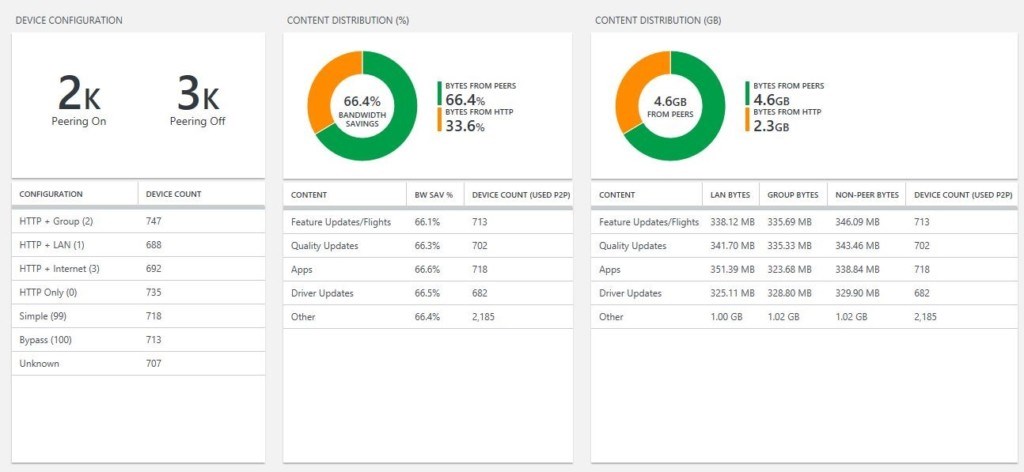
And you can use Windows Analytics to get insights on DO statistics. There’s a great post about getting started here.
Hopefully this information is enough to get you started on a fun DO journey. At its very least, it’s fun statistics you can share with friends or family over dinner tonight. As a reminder, we have a lot of information on our blog about DO, all you need to do is search for it.

By David Meurer

By Michael Niehaus
By Michael Niehaus
By Michael Niehaus