
To do a bare metal Windows deployment, you need an operating system image to deploy. Back in the “old days” of MDT and Configuration Manager, that meant building a reference image, sysprepping that, and capturing it as a new custom image that you can deploy. And of course, DeployR can do that, with a task sequence template that can automate the whole process for you.
But in these “modern” days, many have shifted to just using the Microsoft-provided images which are available for download as ISOs and available from Windows Update (the same images that are used by Microsoft’s Media Creation Tool). Both of those can be done too:
- You can download the latest Windows 11 ISO from either the M365 admin portal (https://admin.microsoft.com) or from Visual Studio Online (https://my.visualstudio.com), mount it, and then import the install.wim into DeployR for deployment.
- You can tell DeployR to download a specific Windows 11 image from Windows Update as part of a task sequence.
Regardless of what operating system image you choose (including Windows Server and still-supported Windows 10/11 LTSC releases too), we can deploy it. Of course if you are downloading it on the fly from Windows Update, you should probably have a fast internet connection.
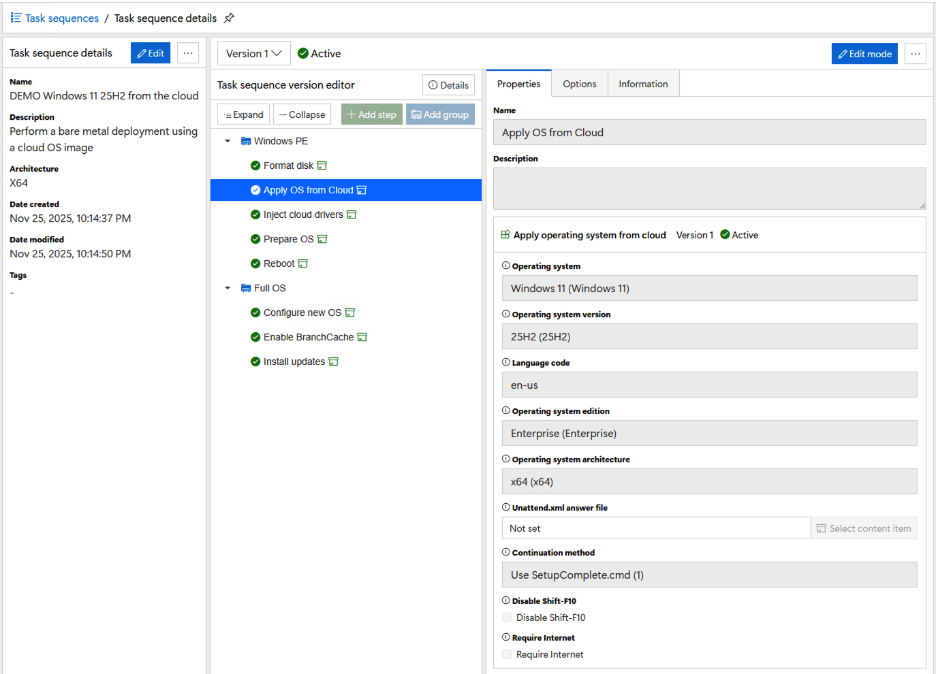
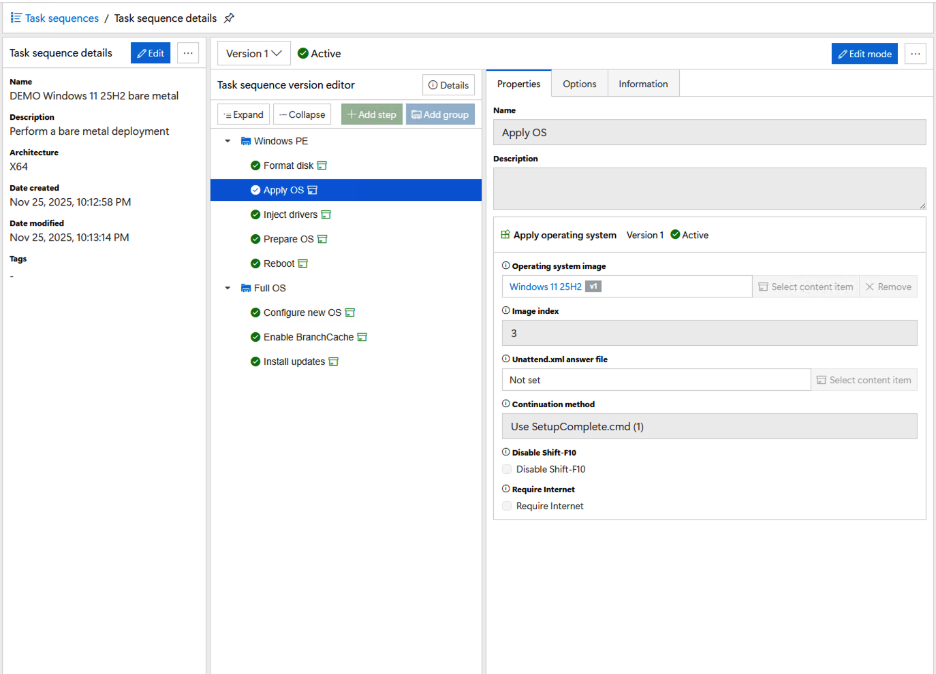
But that’s only the first half of the story. For those that know how MDT and ConfigMgr work, you’ll probably remember that they don’t work the same: MDT used Autologon to continue the task sequence once in the new OS by logging in as the local Administrator, while ConfigMgr used SetupComplete.cmd that automatically executes after OOBE has been completed. So which should we use?
The easiest answer was both. You should be able to choose. And while we were at it, we added a few other mechanisms, which can be configured in the “Apply OS” task sequence steps:
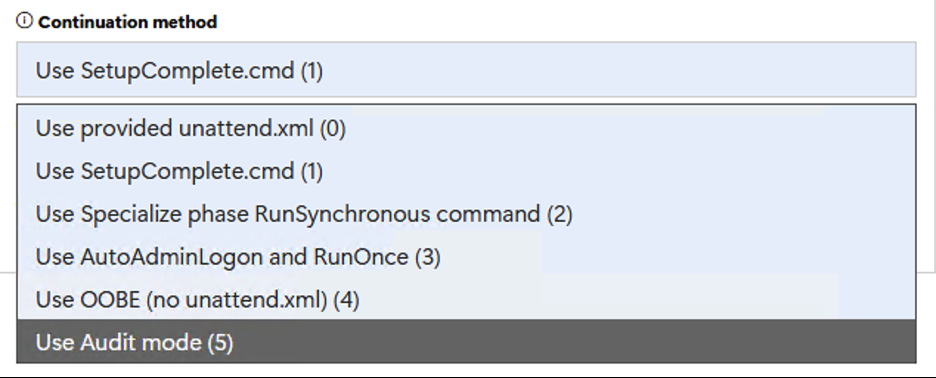
Here’s an explanation of each from the DeployR documentation:
- Use provided unattend.xml. When specified, the unattend.xml specified will be used instead of the default templates included with DeployR. The unattend.xml specified must specify the correct commands for continuing the task sequence, based on how the unattend.xml will relaunh the DeployR via the included bootstrap script.
- Use SetupComplete.cmd. After OOBE completes, Windows will automatically run the SetupComplete.cmd file before a user can log into the operating system. DeployR can leverage this to continue the task sequence, even through multiple reboots. Note that SetupComplete.cmd requires using volume license (and not retail) media.
- Use Specialize phase RunSynchronous command. The specialize phase runs when Windows boots for the first time on a new device. During this phase, the operating system is customized for the hardware. DeployR can continue a task sequence through RunSynchronous commands that are executed automatically via the unattend.xml, even through multiple reboots. Note that there are some limitations at this phase of the process (e.g. Windows updates cannot be installed) because Windows is still in "setup mode."
- Use AutoAdminLogon and RunOnce. After the specialize phase and OOBE are completed, the unattend.xml template specifies to automatically log on as the local Administrator account to run the necessary command to resume the DeployR task sequence. Multiple reboots are possible by reconfiguring the device for autologon and to execute the DeployR client.
- Use OOBE (no unattend.xml). In some scenarios (e.g. Windows Autopilot), it is desirable to finish the task sequence while still in Windows PE. In this case, it is not necessary to specify an unattend.xml; Windows will complete the specialization phase and start OOBE, where the end user can complete the provisioning process.
- Use Audit mode. After the Windows specialization process completes, Windows can be instructed to boot into audit mode, where the local Administrator account automatically logs on, even without enabling the account or setting a password. The DeployR task sequence will then be resumed via RunSynchronous commands in the audit user phase of the process. Multiple reboots can be performed as DeployR will set the needed return codes to indicate to Windows that it should be reinvoked after the reboot. As with the specialize phase, there are restrictions to what can be done (e.g. no patching) due to Windows still being in setup mode. Note that the user will not be able to access the desktop while in audit mode.
Did you even know Windows had that many options? Fortunately, we make it easy for you by configuring reasonable defaults in the provided task sequence templates. But as a rule of thumb:
- Use SetupComplete whenever possible.
- Fall back to Autologon in cases where you have app installation issues (e.g. apps that expect to find the desktop and a logged-on user with a user profile).
- Just want to put an OS on the box for Autopilot? Use OOBE so your task sequence completes in Windows PE and then reboots into OOBE.
- Want to do more pre-provisioning prior to Autopilot? Use audit mode (unless you need to install patches during the pre-provisioning process – then you may want to use SetupComplete and reseal the OS using sysprep /oobe when done; DeployR can take care of that for you too via finish actions).
There are two other options in the Apply OS steps worth mentioning while we’re on the subject:

These are designed for the security-conscious out there. The first makes sure that the user can’t press Shift-F10 during OOBE to open a command prompt. That’s most useful in Autopilot scenarios where you are imaging the box before giving it to the end user.
The second is related: Users could bypass Autopilot altogether by going through OOBE without a network connection; OOBE would offer them the option of creating a local account instead. Since that’s probably not what you want for your organization’s PCs, you can specify to require an internet connection. This sets a UEFI variable in the firmware of the device that OOBE automatically checks; if set, OOBE will not continue until an internet connection has been established. At that point, the device can receive an Autopilot profile and be forced down the correct path (with Autopilot v1 at least – they can still go down the MSA path with Autopilot v2, but hopefully that will be resolved soon).
Top Posts
2Pint Software and Omnissa partnership: Closing the gaps in OS deployment, bare-metal imaging, bandwidth optimization, and endpoint recovery
2Pint Software blog roundup - early summer 2026 edition
2Pint Software blog roundup - spring 2026 edition
By Ranjith Lewis

By David Meurer
By David Meurer

By Andreas Hammarskjöld